






Every play you’ve tagged in Hudl sits in a data file — formations, play types, hash marks, down and distance, personnel, results — all of it exportable as a spreadsheet in about 30 seconds. Most coaches don’t realize it’s there. Once you do, it opens up a whole new way to prep for opponents.
Here’s how to export that data from both Hudl Classic and the newer Hudl platform.
A quick note: Hudl exports data by playlist. That playlist can be a single game or an entire season — whatever you’ve built. Just make sure the playlist you select contains the data you want before you export.
Downloading Data from Hudl Classic:
Hudl Classic makes this simple:
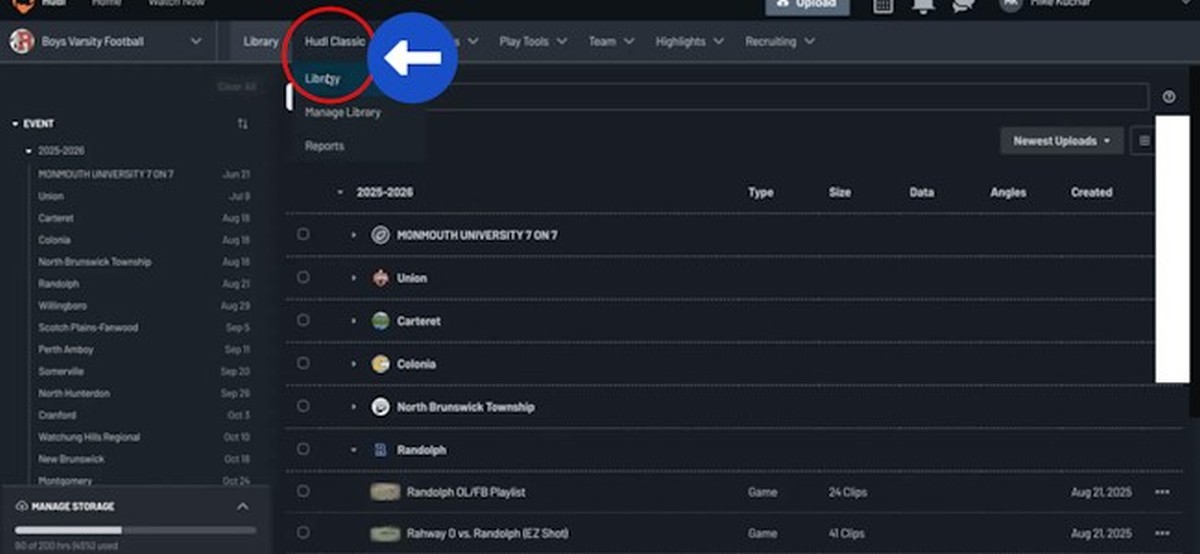
- Open Your Library: Log into Hudl and select Hudl Classic from the dropdown menu. Then click Library.
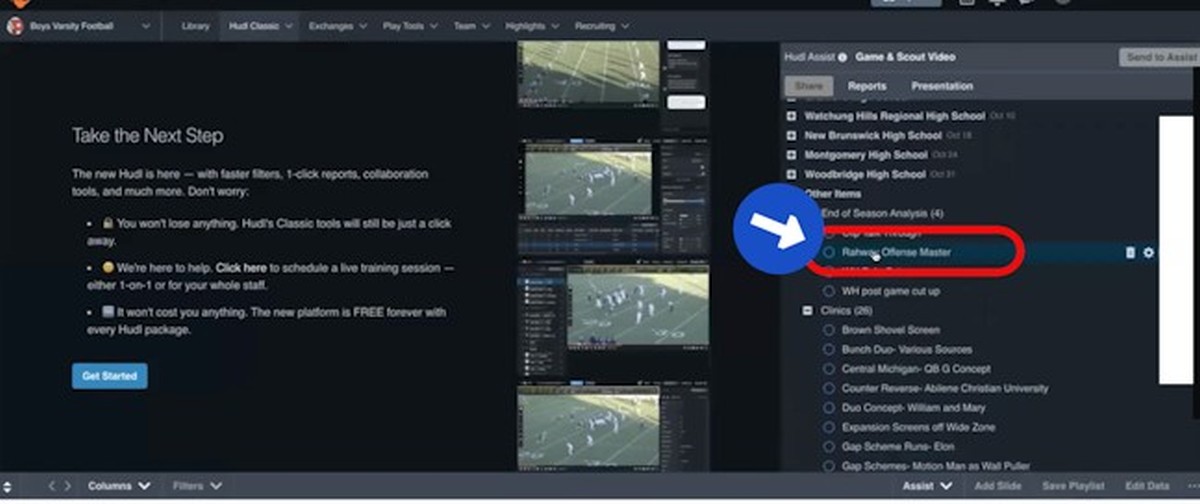
- Select Your Playlist: Browse your library and click on the playlist you want to export — this could be a single game breakdown or a full-season master file.
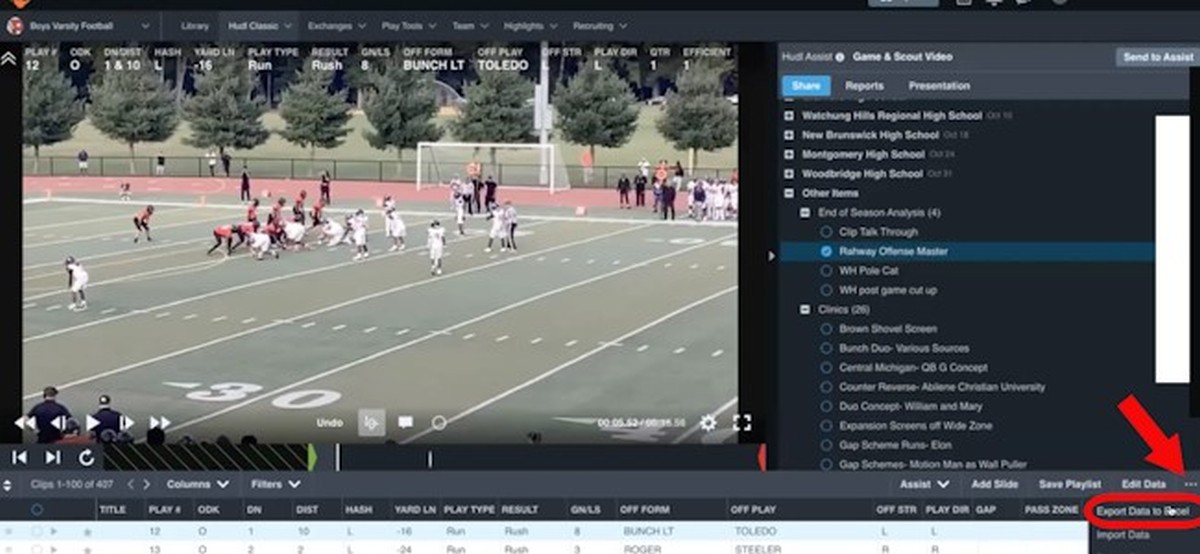
- Export to Excel: On the right side of the screen, click the three dots (⋯) menu. Then click Export Data to Excel.
- Grab Your File. Give it about 10–15 seconds. The spreadsheet will appear in your downloads folder, ready to open.
That’s it. Four clicks and you’ve got your data.
Downloading Data from New Hudl:
The newer Hudl platform adds one extra step, so pay attention here.
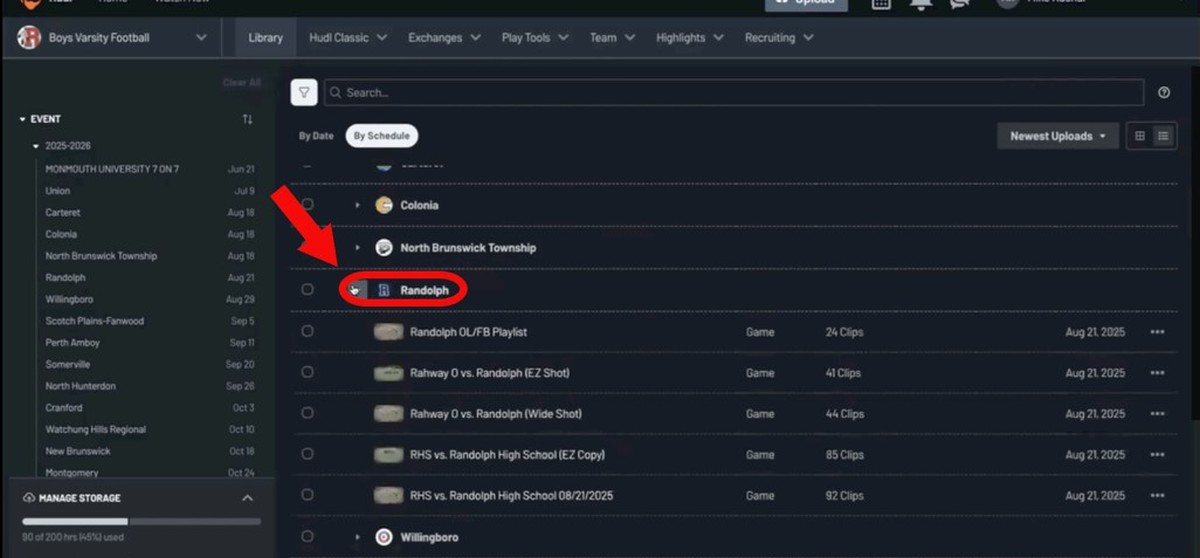
- Find Your Playlist: Log into Hudl and you’ll see your games listed by season. Click the dropdown arrow next to the game you want, and it’ll show all the files (playlists) associated with that game.
- Open the File Details: Find the specific file you want to export. Click the three dots (⋯) next to it, then click Open Details.
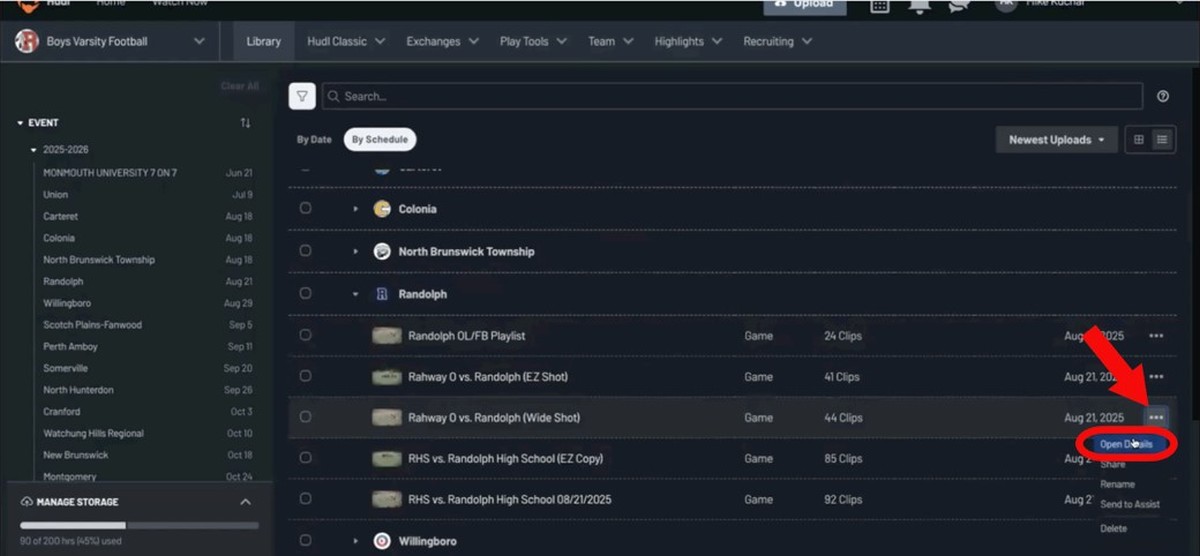
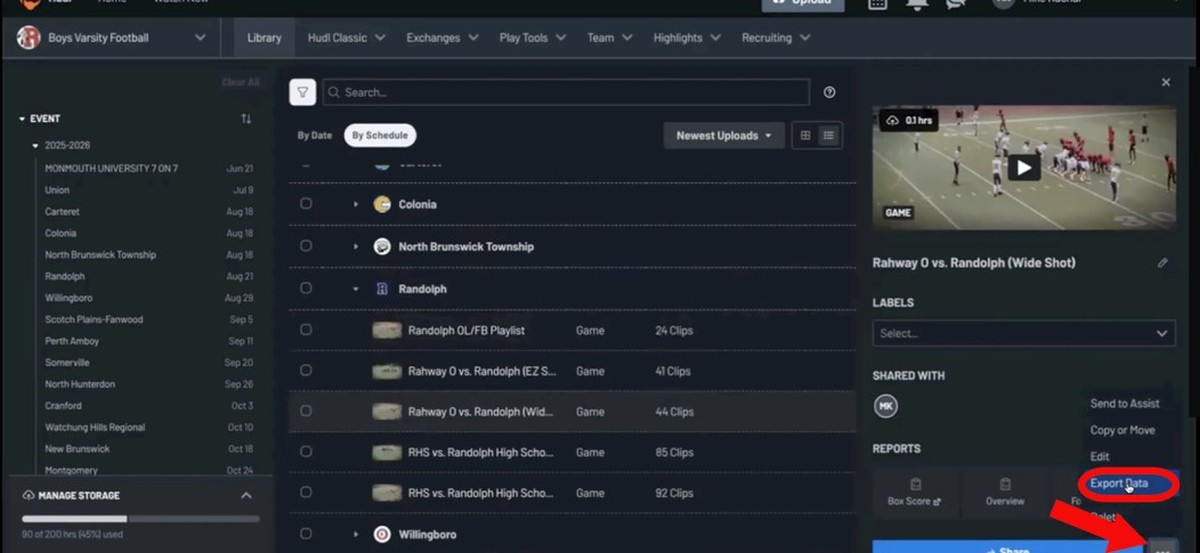
- Export Your Data: Here’s the extra step — inside the details panel, you’ll see another set of three dots (⋯). Click those, then click Export Data.
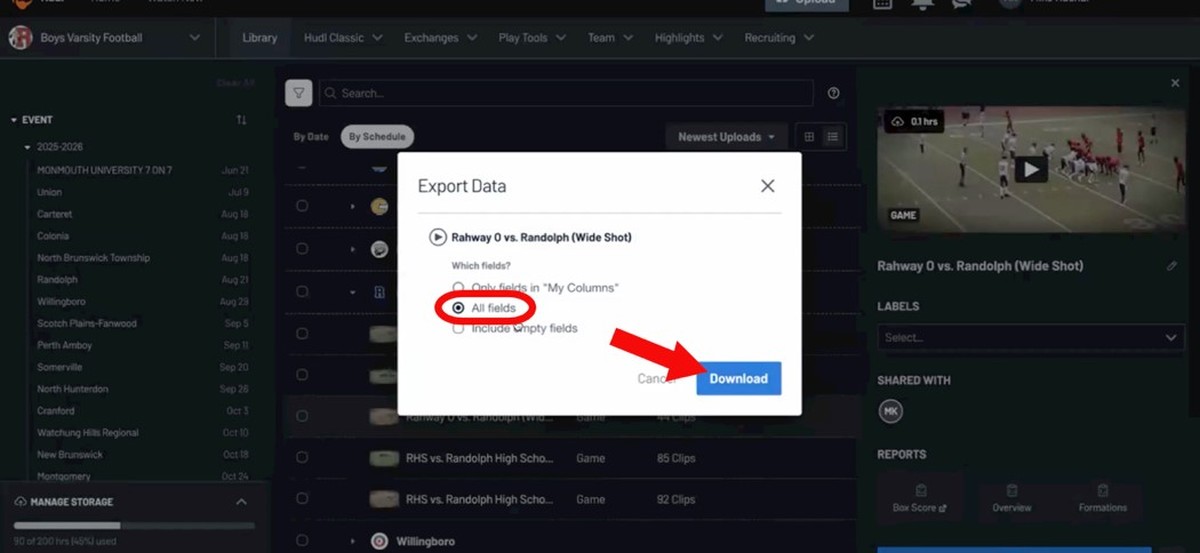
- Select Your Fields and Download: Hudl will ask which fields you want to include. Select all fields — this gives you the complete data set. Then click Download.
- Grab Your File: The spreadsheet drops into your downloads folder just like before. Open it up and you’re good to go.
What Your Spreadsheet Contains:
Your export will be a spreadsheet (Excel or CSV) with a column for each data point you’ve tagged — things like down, distance, hash, formation, play type, play direction, gain/loss, and more. The exact columns depend on what your staff has entered during film breakdown.
If your tagging is solid, this file is a goldmine. If your tagging is thin, you’ll still have the core columns Hudl populates automatically — and even those can tell you more than you think.